GuideUnofficial
How to Use Kling AI, Step by Step
How to use Kling AI: write a prompt, pick a model and settings, fix common errors and save credits. A screenshot-free kling ai tutorial. Unofficial guide.
By PictureToVideo EditorialPublished Updated 9 min read
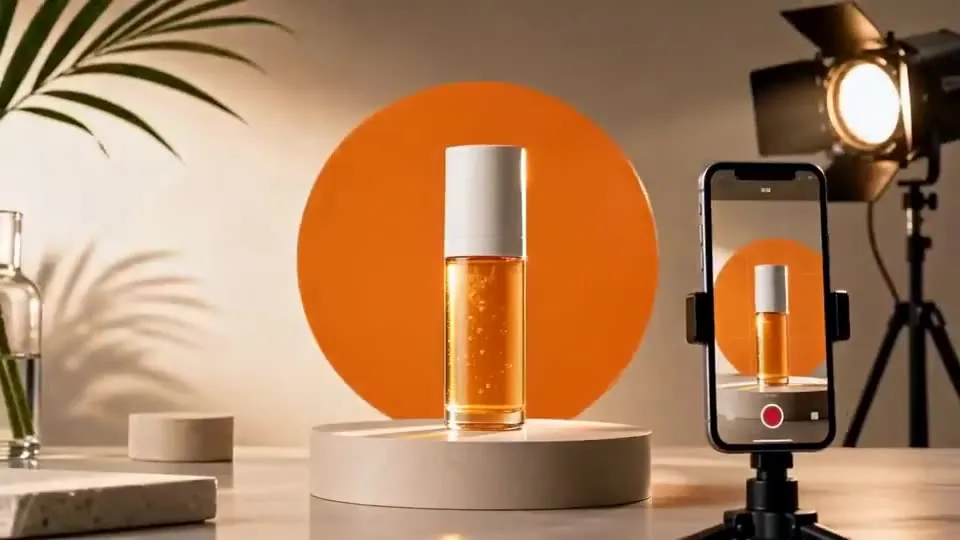
Kling AI is Kuaishou’s family of AI video models. You describe a shot, or upload a photo, and Kling renders a short, cinematic clip: 3 to 15 seconds with Kling 3.0. This guide explains how to use Kling AI from the first prompt to a finished video: where to run it, how to write prompts it actually follows, which model and settings to choose, and how to avoid wasting credits. There are no screenshots of anyone’s app; every example is live, and you can try each step in the generator at the end.
Step 1: Decide where to run Kling
There are two ways to use the same models.
- The official Kling AI app and website (kling.ai). You create a Kling account, get free daily credits with watermarked 720p output, and upgrade to a monthly membership. New models, such as Kling 4.0 Flash, appear here first.
- Independent sites that use the API, such as PictureToVideo. An independent service runs Kling models via API. You don’t need a Kling account, you pay per generated second, and you can switch between Kling versions — and other models such as Veo 3.1, Wan 2.5 or Hailuo 02 — in one place. We’re unofficial, not affiliated with Kuaishou, and we say so on every page.
Both use the same underlying Kling models, so the prompting advice below works in either. Looking for the phone app? Our Kling AI app page explains where to find the official one and how to avoid fakes.
Step 2: Pick a mode
Kling can start from words, a photo, two photos or a reference clip. Choose the mode before you write anything, because it changes what the prompt needs to say.
- Text to video: everything comes from your words. Best for scenes you can’t photograph. See text to video AI.
- Image to video: animate a photo you own. Best for products, portraits and keeping a precise look. See Kling AI image to video, or compare models on the same picture with photo to video AI.
- Start and end frame: give the first and the last image and let Kling find the path between them.
- Motion control: make the character in your photo copy the movement of a reference clip, such as a dance. See Kling motion control.
- Lip sync and extend: make a character speak (in Kling’s own app; lip sync is coming soon on PictureToVideo), or continue a clip from its last frame with the AI video extender.
If you’re unsure, start with text to video. It’s the quickest way to learn how Kling interprets language.
Step 3: Write a prompt Kling can follow
A dependable Kling prompt has five parts, in this order: subject, action, setting, camera, and light and style. Tap each part below to see what it contributes.
Anatomy of a Kling prompt
Tap a part
An old fisherman in a yellow raincoat, hauls a dripping net onto his small wooden boat, on a grey, choppy sea at dawn, slow push-in from a low angle, cold blue light, sea spray on the lens, 35mm film look
Subject → action → setting → camera → light & style. Five short parts, one clause each, in the order Kling weighs them.
Three rules matter more than any magic word:
- One subject, one action, one camera move. Stacking actions makes motion drift and limbs morph.
- Put the important thing first. Details at the start of a prompt carry the most weight; style words belong at the end.
- Describe what you want, not what you don’t. “Clear blue sky” works better than “no clouds”. Save the negative prompt field for genuine exclusions.
For image to video, describe only the motion: the photo already defines the subject and the look. For dialogue, put the spoken line in quotation marks and name who says it. Our Kling AI prompts library has more than 50 examples written this way.
Step 4: Choose the model, length and resolution
Kling versions trade quality, speed and cost.
- Kling 3.0: the flagship. The best motion and detail, 3–15 seconds, optional native audio, up to 4K. Use it for final renders.
- Kling 3.0 Turbo: faster, with sound always on. Good for social clips.
- Kling 2.6: a 1080p workhorse with optional audio, in 5 or 10 seconds.
- Kling 2.5 Turbo: the cheapest way to test an idea. Use it for drafts.
- Kling O1: built for keeping a character or product consistent across reference images. It’s coming soon on PictureToVideo; until then, image to video or start and end frames on Kling 3.0 help keep a subject consistent.
Kling 4.0 is due for official release in October 2026 (4.0 Flash has been in a limited beta since September 28), but there is no official API yet, so we can’t run it today; the Kling 4.0 page tracks when that changes.
Length and resolution multiply the cost, because every model is billed per generated second:
| Model | Resolution | Credits / sec | With audio | Typical clip |
|---|---|---|---|---|
| Kling 3.0 | 720p | 10 | 14 | 5s · 50 cr ≈ $0.68 |
| Kling 3.0 | 1080p | 13 | 19 | 5s · 65 cr ≈ $0.88 |
| Kling 3.0 | 4K | 47 | — | 5s · 235 cr ≈ $3.19 |
| Kling 3.0 Turbo | 720p | — | 13 | 5s · 65 cr ≈ $0.88 |
| Kling 3.0 Turbo | 1080p | — | 16 | 5s · 80 cr ≈ $1.09 |
| Kling 2.6 | 1080p | 8 | 16 | 5s · 40 cr ≈ $0.54 |
| Kling 2.5 Turbo | 720p | 6 | — | 5s · 30 cr ≈ $0.41 |
| Kling 2.5 Turbo | 1080p | 6 | — | 5s · 30 cr ≈ $0.41 |
Credits per second on PictureToVideo. Failed renders are refunded automatically.
A sensible default is 5 seconds at 720p. Go longer only when the action needs time to unfold, and move up to 1080p or 4K once you’re happy with the motion. The Kling 3.0 page lists its full specs. If a shot isn’t landing on Kling, the same prompt structure works on Veo 3.1, Wan 2.5 and Hailuo 02 too; our best AI video generator comparison explains where each one is strongest.
Step 5: Generate, review and iterate
Press Generate and wait. Short 720p clips usually finish within a few minutes, while longer and higher-resolution renders take longer, and queue times vary. When the clip arrives, judge three things in order:
- Motion: does the movement make physical sense?
- Consistency: does the subject stay the same person, product or creature throughout?
- Camera: did the shot do what you asked?
Fix one thing per attempt. Change the action or the camera, never both at once, so you can tell what made the difference. A cheap loop that works well: draft with Kling 2.5 Turbo, then re-render the winning prompt with Kling 3.0.
Step 6: Extend, add sound or sync lips
Once a clip works, build on it rather than starting again. Extend continues the shot from its final frame, which is how you get past the 15-second limit of Kling 3.0. Native audio on Kling 2.6 and 3.0 adds ambience, effects and dialogue in the same render. Lip sync, which matches a character’s mouth to a voice track you provide, is available in Kling’s own app and coming soon on PictureToVideo.
Fixing common problems
- Faces or hands morph. Simplify the action and shorten the clip: 5 seconds is more stable than 15.
- Kling ignores part of the prompt. Move that detail earlier and cut adjectives elsewhere.
- The camera wanders. Name one move and its speed, such as “slow push-in”, or ask for a “static camera”.
- Image to video changes the framing. The output follows your photo’s aspect ratio, so crop it to 9:16, 1:1 or 16:9 first.
- “Prompt blocked.” Our prompt check refuses sexual or suggestive, deepfake and graphic requests before anything runs, and you aren’t charged. Real people’s likenesses, celebrities and copyrighted characters break our content policy too, and the video models’ own safety filters may refuse them; a refused render is refunded automatically. See the content policy.
- The render failed. The credits return automatically. Retry, or simplify the prompt.
Ways to save credits
- Draft cheap, finish expensive. Find the idea at 720p on a fast model, then render the keeper on Kling 3.0.
- Keep clips short. Two 5-second shots are easier to get right than one 10-second take.
- Turn audio off when you plan to add music in your editor.
- Keep a prompt notebook. Reuse structures that worked instead of starting from zero.
There’s no free trial on PictureToVideo. The cheapest way to practise the five-part prompt is the $2.99 starter pack: 200 credits, or about 6 five-second Kling 2.5 Turbo drafts at 720p. See Kling AI free for every free option elsewhere, including Kling’s own daily credits, and our pricing page for plans and credit packs.
Try it now
The generator below is set to Kling 3.0, 5 seconds, 720p. Load the example from step 3, or write your own five-part prompt.
Practice here
Independent · via API · not affiliated with Kuaishou